
Unlock the convenience of seamless funds transfer by linking your PayPal account to GCash. With this integration, transferring money between these two platforms becomes a straightforward process, streamlining your digital financial transactions. It’s important to note that a fully verified GCash account is a prerequisite for linking to PayPal, ensuring a secure and reliable connection.
Follow our provided guide to effortlessly connect your PayPal and GCash accounts, enhancing your financial flexibility and efficiency.
How Can I Link GCash to Paypal?
Follow these steps to connect your GCash account with your PayPal account.
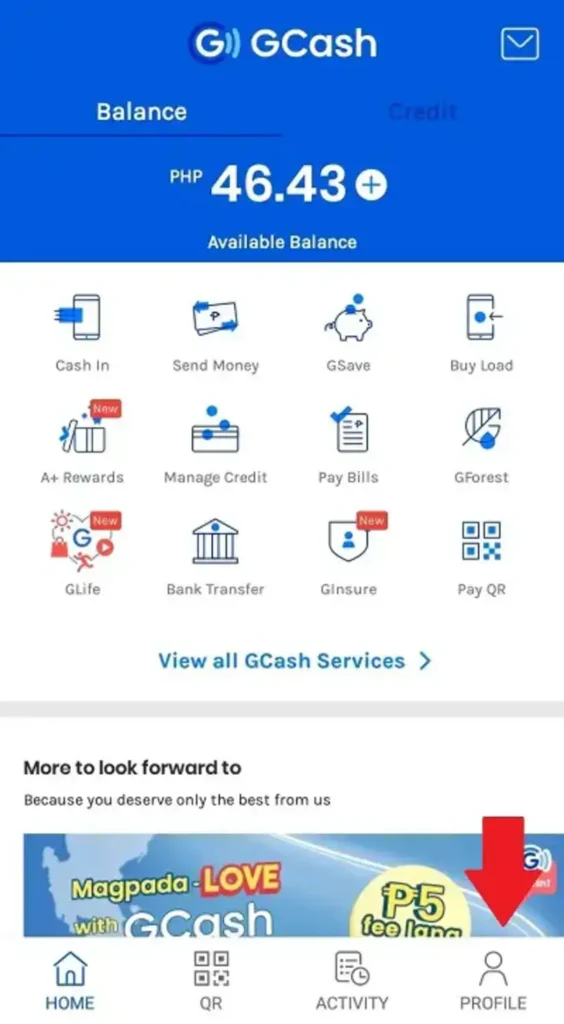
1. Launch your GCash application and sign in by entering your 4-digit MPIN.
2. Select “Profile” option situated in the lower right corner of the GCash home screen.
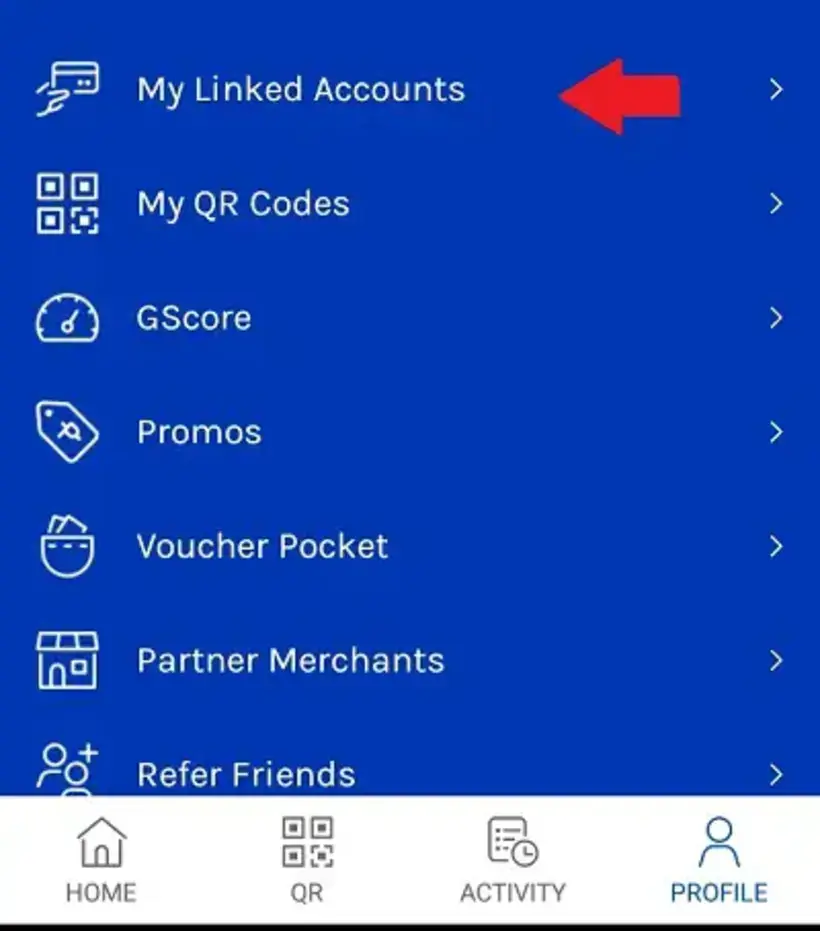
3. Select “My Linked Accounts” from the sidebar menu by tapping on it.
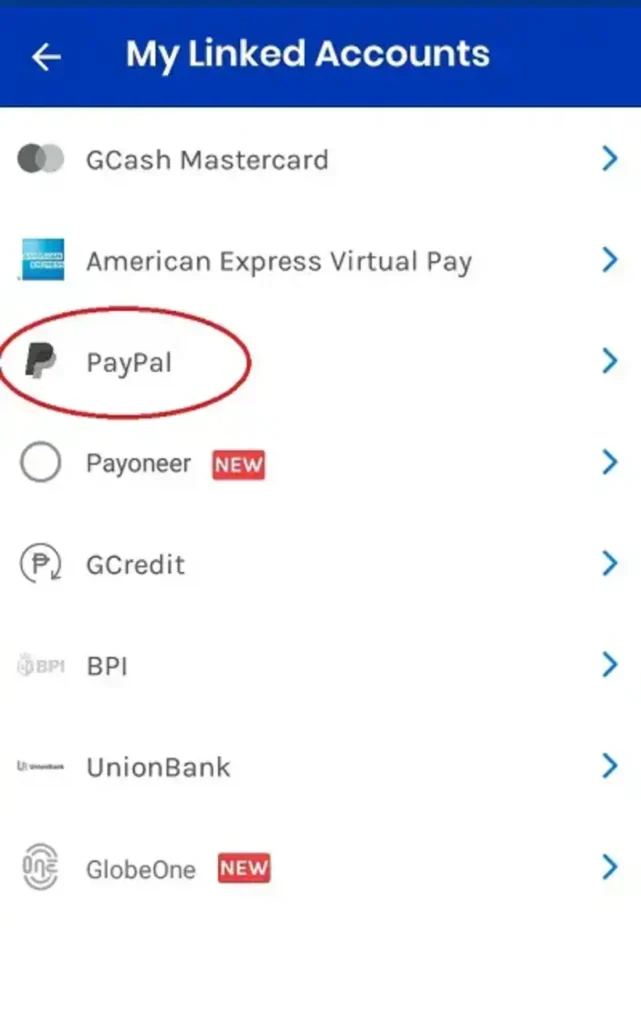
4. Choose “PayPal” from the available options list.
5. Input the email address associated with your PayPal account that you wish to link to your GCash account.
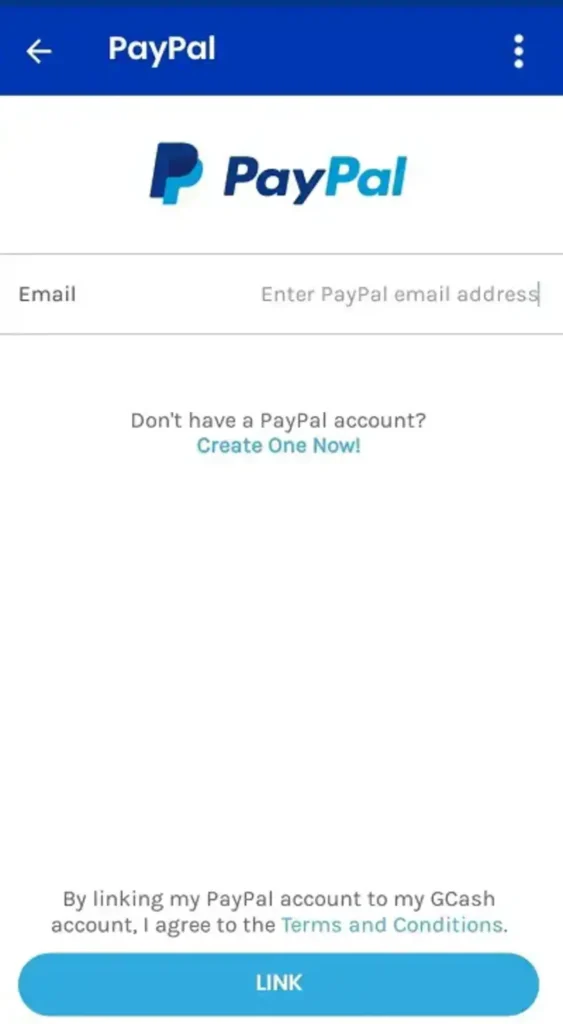
After entering your PayPal email account, click the “Link” button. Upon clicking, you’ll be redirected to the PayPal login page.
6. Select the “Authorize” button.
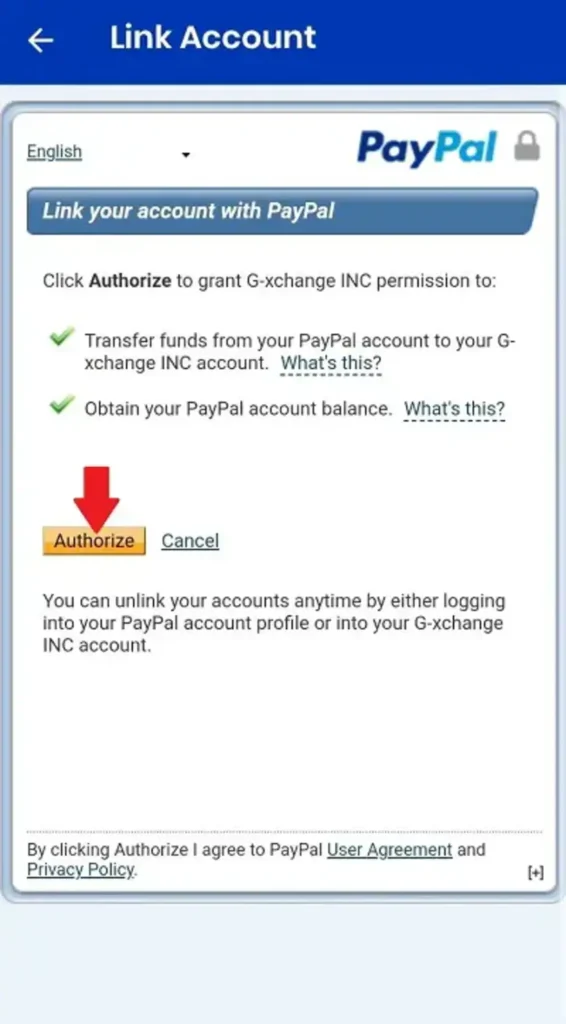
7. Input your PayPal account username (i.e., email address) and password.
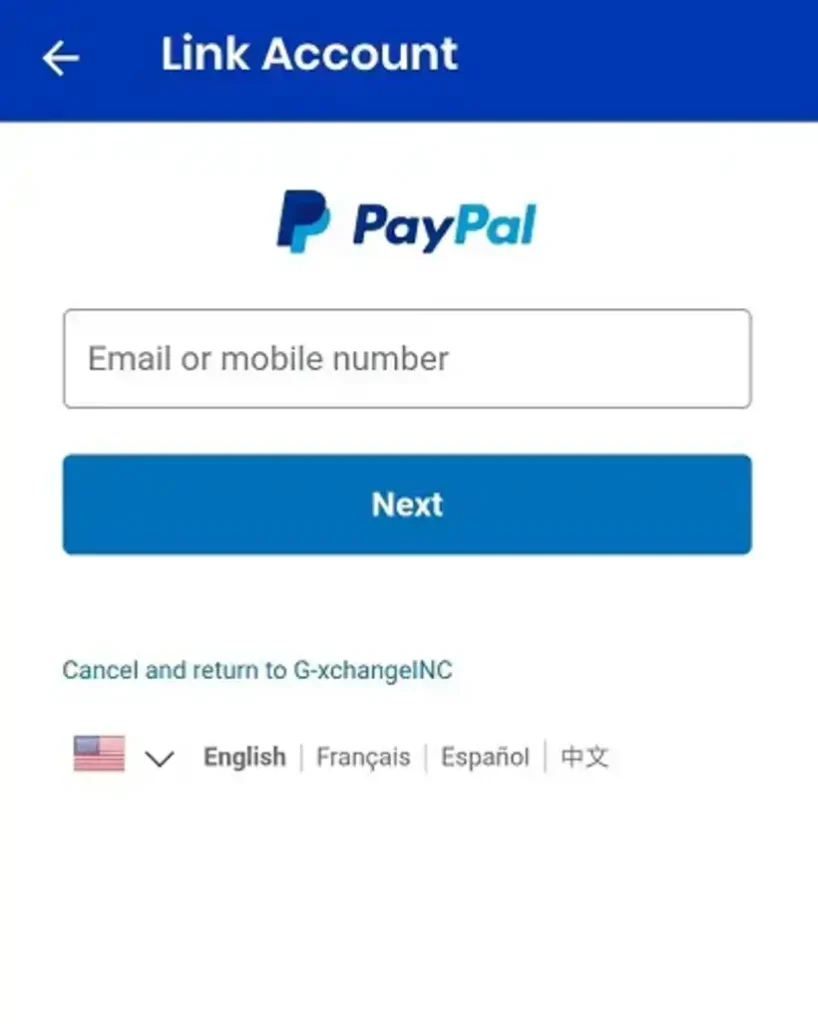
Once you’ve provided your PayPal account credentials, your PayPal and GCash accounts should be successfully linked.
Frequently Asked Questions
1. Is it possible to link my PayPal and GCash accounts if they have different account names?
Unfortunately, it is not possible to link your PayPal and GCash accounts if they have different account names. Both accounts must share the same First Names and Last Names for the linkage to be successful. Ensuring consistency in these details is crucial to facilitate the connection between your PayPal and GCash accounts.
2. What are the steps to link my PayPal account with my GCash Mastercard?
Follow these steps to connect your PayPal account with your GCash Mastercard:
1. Access your PayPal account either through the app or the official website in your browser, and log in.
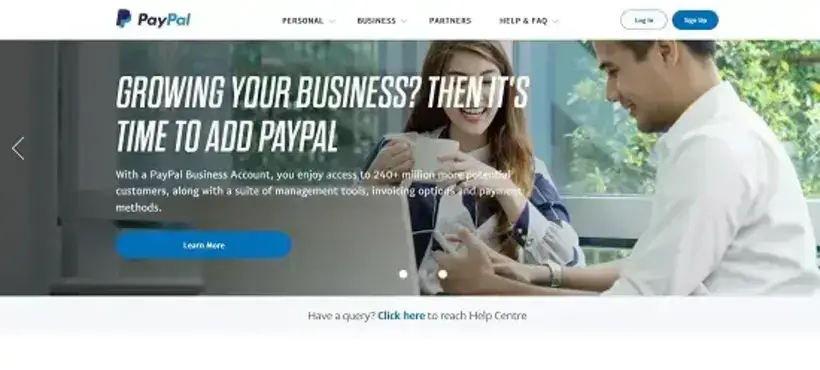
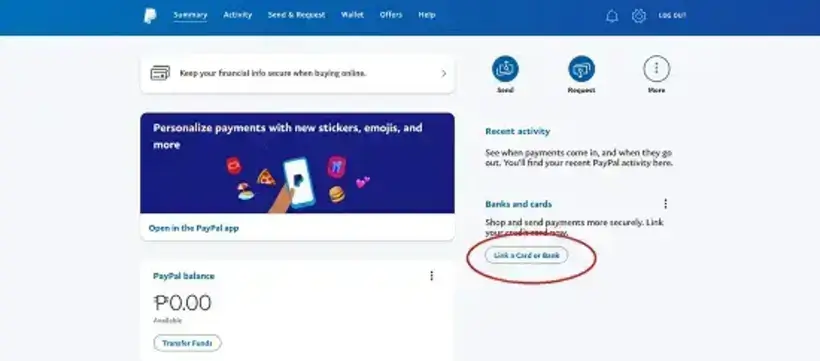
2. Choose “Link a Card or Bank” from the options.
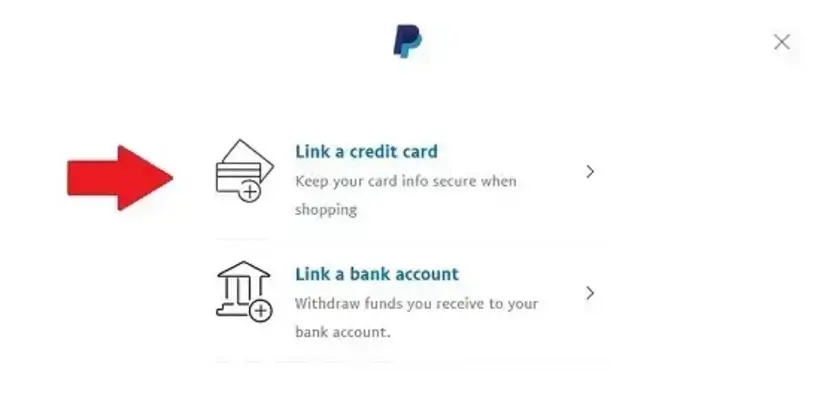
3. Choose “Link a credit card” from the available options.
4. Input the necessary information as prompted.
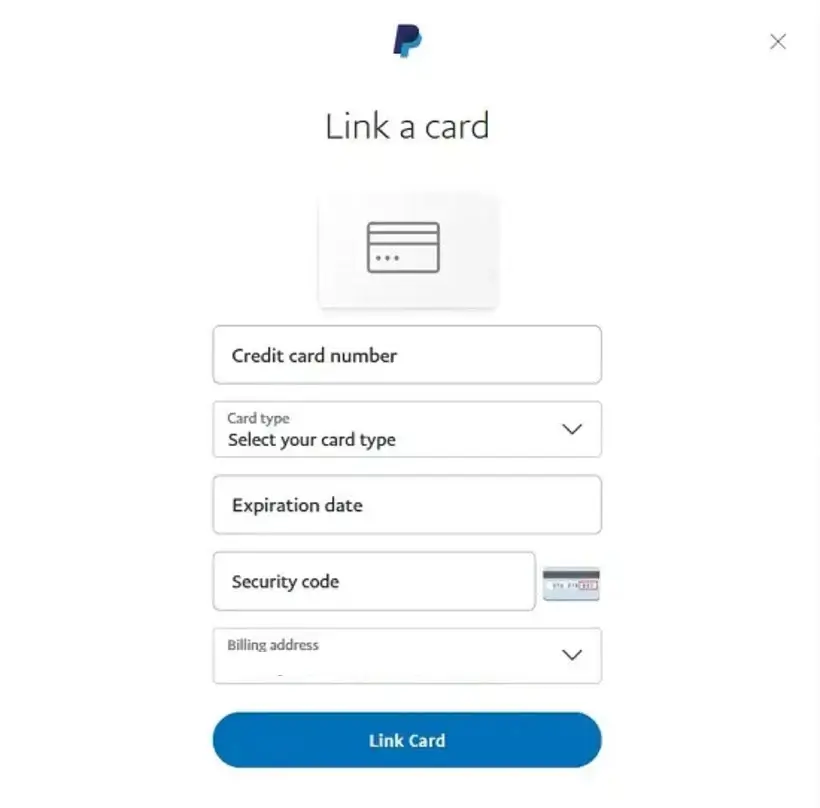
Input the following details into the designated fields:
- Credit card number: Enter your GCash Mastercard number.
- Card type: Choose “Mastercard.”
- Expiration date: Provide the expiration date of your GCash Mastercard.
- Security code: Enter the security code located on the back of your GCash Mastercard.
- Billing address: Your billing address will automatically populate on the screen, but you have the option to add an address.
Once all information is entered, click the “Link Card” button at the bottom of the page.
A confirmation message confirming the successful linking of your GCash Mastercard to your PayPal account will be displayed on your screen.
3. What steps should I take to unlink my PayPal account from my GCash account?
The sole method to unlink a GCash account from your PayPal account is by linking a new GCash account. When you connect a new GCash account, it automatically severs the link with your previous account on PayPal, providing a straightforward solution for disconnection.
4. What steps do I follow to link my GCash AMEX Virtual Card with my PayPal account?
Follow these steps to connect your GCash AMEX Virtual Card to your PayPal account:
1. Access your PayPal account by using the app or visiting the official PayPal website through your browser, and log in.
2. Choose the option “Link a Card or Bank.”
3. Choose the option “Link a credit card.”
4. Input the necessary details.
Enter the following details into the provided fields:
- Credit card number: Input your GCash Virtual AMEX Card number.
- Card type: Choose “American Express.”
- Expiration date: Enter the expiration date of your GCash Virtual AMEX Card.
- Security code: Your GCash Virtual AMEX Card security code will be sent to your GCash-registered mobile number upon request.
- Billing address: Your billing address will automatically populate on the screen, but you have the option to add an address.
After entering all the required information, click the “Link Card” button at the bottom of the page.
A confirmation message indicating the successful linking of your GCash Virtual AMEX Card to your PayPal account will appear on your screen.
5. What steps should I take if I encounter difficulties linking my PayPal account to my GCash account?
If you encounter difficulties linking your PayPal account to your GCash account, several factors may contribute to the issue. Here’s a checklist to troubleshoot and ensure a successful connection:
- Account Names: Confirm that your PayPal account name matches the GCash-registered account name.
- Account Type: Ensure your PayPal account is a Personal Account.
- Geographic Setting: Verify that your PayPal account is set up in the Philippines.
Additionally, to enhance the linking process, make sure you have verified your credit card or bank account linked to your PayPal account, as this step is essential for removing withdrawal limits. Addressing these considerations should help facilitate the successful linkage of your PayPal and GCash accounts.