
In today’s rapidly evolving digital landscape, taxpayers are no longer confined to the traditional visit to a Revenue District Office (RDO) for fulfilling their tax obligations. With the advent of technology, online tax payment has emerged as a convenient and efficient alternative, sparing taxpayers the ordeal of queues and procedural hassles. While the transition to online channels has undoubtedly streamlined the payment process, it comes with its own set of challenges, most notably the possibility of downtime.
In the unfortunate event of online payment issues, manual payment becomes the sole recourse for taxpayers.
This article delves into the diverse array of tax payment methods available in the Philippines, shedding light on the benefits of online payment as well as the fallback option of manual payment. It is crucial to note that the information provided in this article is of a general nature and should not be considered a substitute for professional advice, as individual circumstances may vary.
Online Payment Options
Paying tax at an Authorized Agent Bank (AAB) or with a Revenue Collection Officer often involves enduring lengthy lines and waiting hours, making the process time-consuming. However, recognizing the need for efficiency and convenience, the Bureau of Internal Revenue (BIR) has introduced various e-payment facilities to streamline the tax payment experience.
Taxpayers can now conveniently file and pay taxes online through a range of digital methods, including credit/debit/prepaid cards via bank transfers and mobile wallets. The key advantage of online tax payment lies in the flexibility it offers, allowing individuals to fulfill their tax obligations anytime and anywhere.
With diverse online channels available for income tax payment, the BIR aims to provide taxpayers with a more convenient and accessible means of fulfilling their financial responsibilities.
1. GCash
Experience the ultimate convenience in tax payment with GCash! Now, GCash users can seamlessly settle their taxes using their mobile phones, eliminating the need for traditional payment methods. To utilize this feature, users simply need to ensure a sufficient balance in their GCash mobile wallet.
The flexibility of tax payment via GCash allows users to make transactions either before or after filing their Income Tax Return (ITR) with the Bureau of Internal Revenue (BIR). Enjoy the simplicity and ease of managing your taxes with GCash, supported by a minimal service fee structure.
For tax amounts up to Php 10,000, the fee ranges from Php 10 to Php 40, while for amounts exceeding Php 10,000, a modest 1.2% service fee is applied. Embrace the future of tax payment with GCash, where convenience meets affordability.
To make a secure and efficient payment to the Bureau of Internal Revenue (BIR) using the GCash app, follow these steps:
- Open the GCash app on your mobile device and log in to your account.
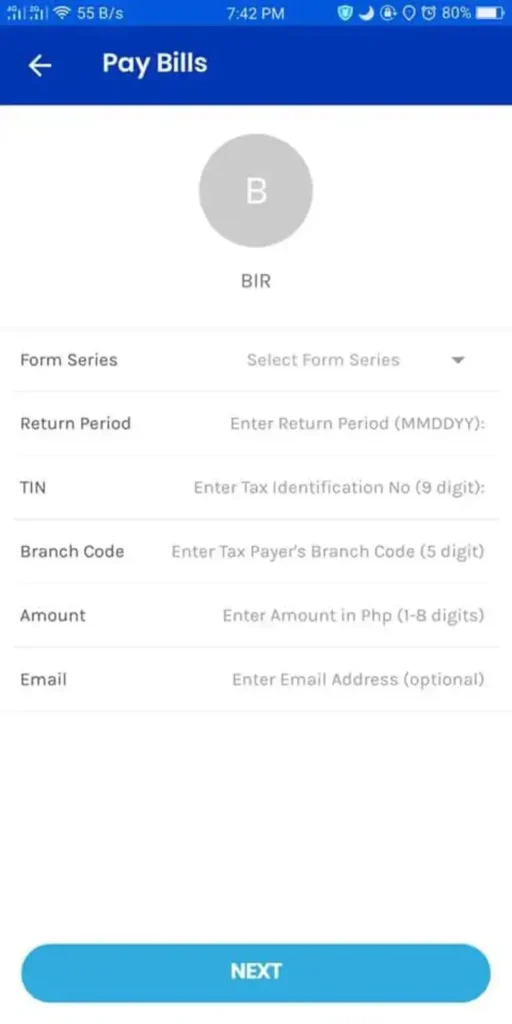
- Navigate to “Pay Bills” > “Government” > “BIR” within the app.
- Fill out the Pay BIR Form with the necessary information, including personal and payment details.
- Choose the appropriate Form Series and tax type that corresponds to your filing requirements.
- Select the Return Period, specifying the last day of the relevant quarter or year for accurate processing.
- Review the payment details to ensure accuracy and completeness of the information provided.
- Confirm the payment once you are satisfied with the details and are ready to proceed.
- Upon confirmation, you will receive a payment confirmation page within the app, providing you with a summary of the transaction.
- Additionally, you will receive a text message confirming the successful transaction, ensuring you have a record of the completed payment. This streamlined process makes settling your BIR obligations convenient and accessible through the GCash platform.
2. PayMaya
The PayMaya app has recently joined forces with the Bureau of Internal Revenue (BIR) as one of its electronic payment partners, offering users a seamless and convenient way to settle their taxes. With the PayMaya app’s Pay Bills feature, users can now effortlessly make tax payments without the need for enrolling the BIR as a biller.
This streamlined process eliminates unnecessary steps, providing users with a hassle-free experience. However, a nominal convenience fee of Php 20 is deducted from the mobile wallet for each tax payment made through the PayMaya app, ensuring a quick and efficient transaction.
This collaboration between PayMaya and the BIR marks a significant stride towards simplifying financial transactions and promoting digital solutions in tax payments.
To pay your taxes conveniently through the PayMaya app, follow these simple steps:
- Open the PayMaya app and log in to your account.
- Tap “Pay Bills.”
- Select the BIR logo in the list of billers or type “BIR” in the search box.
- Enter the required information for your tax payment:
- Provide your nine-digit TIN in the Account Number field.
- Enter the amount of tax to pay.
- For individual taxpayers with no branch code, type 00000 in the Branch Code field.
- Choose RDO Code, Form Series, and Form Type (e.g., 2500 for Form Series and 2551Q for Form Type for quarterly percentage tax).
- Select the appropriate Tax Type (IT for income tax/PT for percentage tax/RF for registration fee renewal).
- Under “Return Period,” choose the applicable month, day, and year of your tax payment.
- Enter your email address to receive proof of payment.
- Review your tax payment details and tap the Pay button.
- Receive a confirmation of your successful transaction.
- Wait for an email and text confirmation of your tax payment. With these easy steps, you can efficiently fulfill your tax obligations using the PayMaya app.
3. Moneygment
Moneygment is a cutting-edge mobile app designed to streamline the process of paying taxes and government contributions. Currently, the app caters to users in specific regions, including Metro Manila, Central Luzon, CALABARZON, and Cebu, accepting payments for income tax and real property tax.
In addition, Moneygment facilitates contributions to Pag-IBIG, PhilHealth, and SSS, offering a comprehensive solution for financial obligations.
For personal income tax filing, the service fee starts at Php 650, and real property tax payments incur a Php 500 charge per transaction. Notably, Moneygment distinguishes itself from other platforms like GCash by charging higher fees, justified by its unique ability to perform tax computations for users based on entered income and expenses.
To embark on the Moneygment journey, users simply need to create an account and fund their mobile wallet, ensuring a seamless and efficient experience in managing their financial responsibilities.
To pay your taxes seamlessly using Moneygment, follow these simple steps:
- Open the Moneygment app and log in.
- Tap the “Calculate, Pay and File Your Taxes” icon.
- Select “Personal Income Tax.”
- Tap “Create or update your profile” and choose your tax deduction scheme.
- Optional: Standard Deductions/Itemized Deductibles
- Tap “Encode your income & expense” and provide the required information.
- Tap “View your tax computation and pay.”
- Choose a payment method:
- Moneygment virtual wallet
- Deposit to a bank account
- PayPal
- Dragonpay
- Any partner bank
- Any ECPay outlet
- Any 7-Eleven store
- Pay your tax and the service fee.
- Wait for a notification from Moneygment about your successful transaction.
- Processing tax payments usually take one to two working days.
4. LANDBANK Link.BizPortal
LANDBANK Link.BizPortal stands as a user-friendly online platform designed to streamline tax payment processes in the Philippines. Leveraging the efficiency of the PESOnet system for electronic fund transfers, this platform caters to both individual and corporate taxpayers possessing LANDBANK Peso ATM savings or current accounts, as well as BancNet cardholders.
Facilitating eFPS or eBIRForms filings, payments are seamlessly deducted directly from the taxpayer’s LANDBANK ATM card or BancNet ATM/debit card. Notably, enrollment in LANDBANK Link.BizPortal is not a prerequisite for utilizing this service, offering a hassle-free experience.
The platform ensures accessibility throughout the week, including holidays, operating from 12:01 a.m. to 11:00 p.m., with a brief maintenance break from 11:01 p.m. to 12:00 a.m. This initiative marks a significant stride towards modernizing and simplifying tax transactions in the digital landscape.
To pay taxes through LANDBANK Link.BizPortal, follow these simple steps:
- Access the LANDBANK Link.BizPortal website.
- Click the “Pay Now” button on the homepage.
- Enter “Bureau of Internal Revenue” as the merchant name or select it from the Merchant List.
- Click “Continue” and choose “Tax Payment” as the transaction type.
- Enter payment details:
- Select the applicable BIR Form No. (1700/1701/1701A/1701Q) in the Form Type field.
- Choose “IT” (income tax) as the Tax Type.
- Use the calendar to select the applicable Return Period.
- Enter your email address for confirmation details.
- Read and agree to the Terms and Conditions by ticking the small box.
- Review payment details, then click “Continue” and subsequently “OK.”
- Proceed with the payment, following instructions based on your chosen payment mode (LANDBANK or BancNet account details, or online banking credentials).
- After online submission, a message confirming the successful transaction will be displayed.
5. Authorized Agent Banks’ Digital Banking Channels: Online and Mobile Platforms
Conveniently streamline your tax payment process with the Bureau of Internal Revenue’s (BIR) online platform, available through authorized agent banks (AABs) such as BPI, PNB, UCPB, and UnionBank. To initiate the process, e-file your Income Tax Return (ITR) seamlessly through either the Electronic Filing and Payment System (eFPS) or the Electronic BIR Forms (eBIRForms).
Following submission, patiently await the BIR’s confirmation of your successful ITR filing, which will be communicated via email. Once confirmed, take advantage of your chosen AAB’s user-friendly online or mobile banking facility to settle the tax dues efficiently. Experience the ease and efficiency of online tax payments, ensuring a hassle-free compliance with tax obligations.
To streamline the process of online/mobile tax payment, follow these steps:
- Log in to your online banking account: Access your online banking platform using your credentials.
- Navigate to the bills payment page: Locate the bills payment section within the online banking interface.
- Select BIR (Bureau of Internal Revenue) from the list of billers/payment merchants: Choose BIR as the designated biller for tax payments.
- Enter the necessary payment details: Provide the required information such as taxpayer identification number, amount, and tax period.
- Choose the bank account number from which the tax payment will be deducted: Select the appropriate bank account for the transaction.
- Review the entered details before confirming the payment: Double-check all the provided information to ensure accuracy.
- Print the payment confirmation either from the screen or the email message sent by your bank: Keep a record of the payment confirmation for your records. You can either print it directly from the screen or use the email confirmation sent by your bank.
By following these clear and concise steps, you can efficiently complete your online/mobile tax payment while ensuring accuracy and maintaining a record of the transaction.
Manual Payment Options
1. Revenue Collection Officer
If your Revenue District Office (RDO) does not have an assigned Authorized Agent Bank (AAB), it is essential to fulfill your tax obligations by visiting your registered RDO directly. Ensure to submit all the necessary documents for Income Tax Return (ITR) filing and settle your tax dues with a knowledgeable Revenue Collection Officer.
These officers are authorized by the Bureau of Internal Revenue (BIR) and will adeptly manage your transaction. Following the processing of your payment, you will be issued an Electronic Revenue Official Receipt (eROR), an Official Receipt, and an Acknowledgement Receipt. These documents serve as tangible proof of your compliance and are crucial additions to your financial records.
2. Authorized Agent Banks
Authorized Agent Banks (AABs) play a crucial role in the tax collection process, acting as intermediaries between taxpayers and the Bureau of Internal Revenue (BIR). These banks are specifically designated by the BIR to collect taxes and receive tax returns along with necessary attachments from taxpayers.
Revenue District Offices (RDOs) across different regions are assigned one or more AABs within their jurisdiction. This decentralized approach ensures that taxpayers have convenient access to payment facilities within their local area.
It is imperative for taxpayers to adhere to the guidelines set by the BIR regarding tax payments. When making tax payments, individuals and businesses should pay taxes exclusively at the AAB that falls under the jurisdiction of the RDO where they are registered.
This ensures an organized and efficient tax collection process. Furthermore, if a taxpayer is registered at a specific RDO, payments should be made only at an AAB located within the geographical boundaries of that particular RDO.
In situations where physical presence at the designated AAB is not feasible, the BIR recommends utilizing online tax payment channels. This provides taxpayers with a convenient alternative while still ensuring compliance with tax regulations.
To identify AABs accepting over-the-counter tax payments within a specific RDO’s jurisdiction, individuals can refer to the BIR website. By clicking on the relevant link corresponding to their RDO code, taxpayers can obtain information on the authorized banks for tax transactions in their area.
To facilitate a smooth tax payment process, individuals are advised to prepare adequately before visiting an AAB. It is essential to ensure that all necessary requirements for income tax return (ITR) filing and payment are in order.
Moreover, taxpayers should bring the correct amount of tax to be paid to avoid any discrepancies. After making the payment, it is crucial to verify that the receiving copy of the ITR is stamped and validated by the AAB. Additionally, obtaining a machine-validated bank deposit slip serves as a record of the transaction, providing proof of payment for future reference and audits.
Frequently Asked Questions
1. Do I need to use traditional payment methods alongside GCash?
No, there is no need for traditional payment methods when using GCash for tax payments. The entire process can be completed through the mobile app.
2. Is the payment in GCash flexible before or after filing my Income Tax Return (ITR)?
Yes, GCash allows for flexible payment options, both before and after filing your Income Tax Return.
3. How much is the service fee for GCash tax payments?
The service fee ranges from Php 10 to Php 40 for amounts up to Php 10,000, and it is 1.2% for amounts exceeding Php 10,000.
4. Is the payment process secure through GCash?
Yes, GCash ensures a secure payment process through its mobile app, providing a safe and reliable platform for tax payments.
5. What is the convenience fee for tax payments through PayMaya?
PayMaya deducts a Php 20 convenience fee per tax payment for added convenience.
6. Are there service fees associated with Moneygment tax payments?
Yes, service fees for Moneygment start at Php 650 for personal income tax filing. Additionally, it has a unique ability to perform tax computations based on entered income and expenses.
7. Is the LANDBANK Link.BizPortal platform operational throughout the week?
Yes, LANDBANK Link.BizPortal is operational throughout the week, with only a brief maintenance break.
8. How can I use authorized banks’ online/mobile platforms for tax payments?
E-file your Income Tax Return (ITR) through eFPS or eBIRForms, and after confirmation, use the online/mobile banking of authorized banks (e.g., BPI, PNB) for efficient tax payment.
9. How can I make manual tax payments through Revenue Collection Officer?
Visit your registered Revenue District Office (RDO) for manual tax payment. Submit necessary documents for ITR filing, and the transaction will be managed by a knowledgeable Revenue Collection Officer.
10. What are the advantages of manual payment through Authorized Agent Banks (AABs)?
AABs act as intermediaries for tax collection, and taxpayers pay exclusively at the AAB in the jurisdiction of their registered RDO. Manual payments are recommended if physical presence is not feasible.
11. How are Authorized Agent Banks (AABs) designated for tax collection?
AABs are designated by the BIR for tax collection, and taxpayers are advised to follow the guidelines provided by the BIR for accurate transactions.
12. Why is it important to maintain records of online tax payments?
It is crucial to maintain records of transactions for future reference and audits. This ensures accountability and transparency in your tax-related activities.